
Connect Formspree to your website.
You create the form in Formspree and give your MetriFi agent its address. Answers then go from your website straight to Formspree, which emails them to you.
Updated Tested hands-on
Six steps in Formspree.
-
Sign up
Go to Formspree’s sign-up page (opens Formspree in a new tab), enter your name, your work email and a password, tick the terms box and click Register. Complete the picture check and Formspree’s four short questions, then open the link Formspree emails you to confirm your address.
-
Ignore the trial, or cancel it
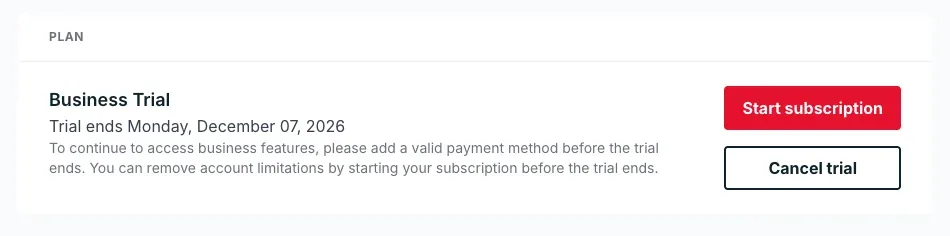
New accounts start a 14-day trial of Formspree’s Business plan, with no card. Everything in this guide works on the Free plan, so you can ignore the trial, or cancel it under Account > Billing (opens Formspree in a new tab): one click on Cancel trial, with no confirmation, and you’re on Free. Don’t rely on a setting only the trial unlocks; it stops working when the trial ends.
-
Create a form
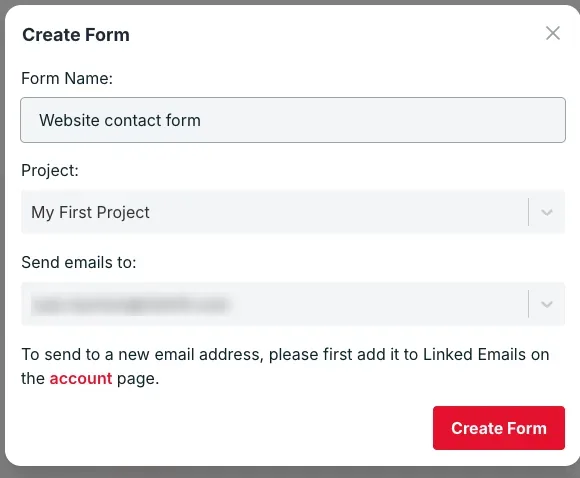
Go to Forms (opens Formspree in a new tab), click Add New > New Form, name it for the page it serves, such as Website contact form, and click Create Form.
-
Leave CAPTCHA off
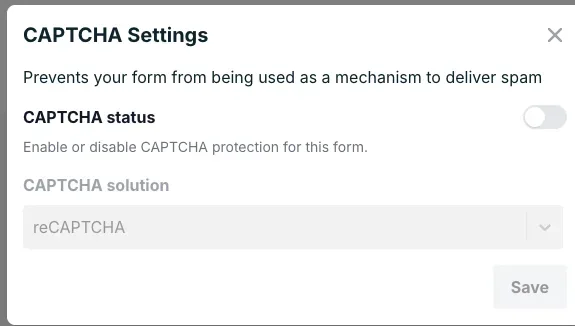
On the form’s Settings tab, CAPTCHA starts off. Leave it off: with CAPTCHA on, the form on your website fails, visitors see an error instead of your thank-you message, and their answers never reach you. Leave Formshield, Formspree’s spam filter, on.
-
Choose who gets notified
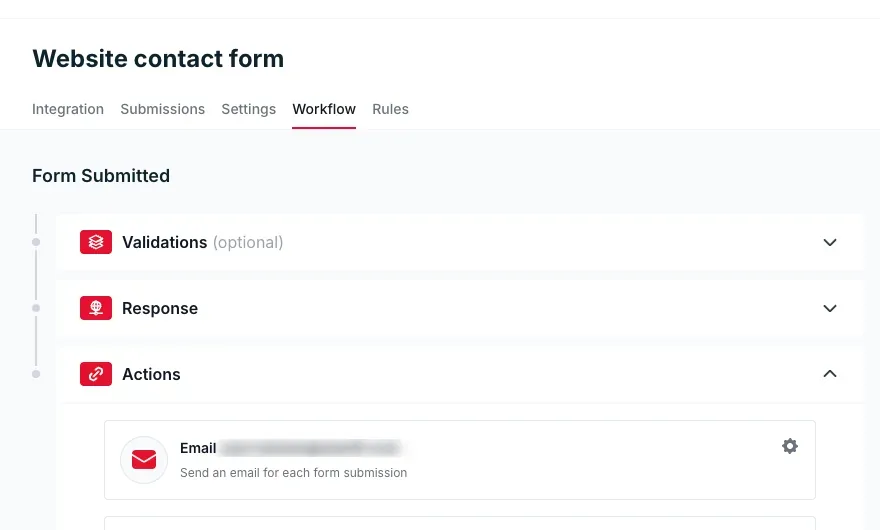
Each answer is emailed to the address in Send emails to, your own unless you change it. To use another address, first add it under Linked Emails on your Account page (opens Formspree in a new tab). On the form’s Workflow tab, the Email action should be on.
-
Copy the form address
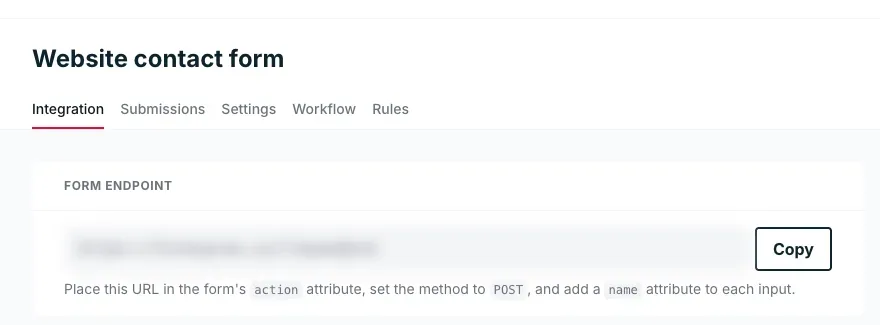
On the form’s Integration tab, click Copy next to Form endpoint. That address is what you give whoever edits your site, in the prompt below. Use our prompt rather than the Use with AI assistants one under it: ours also tells your agent the two settings it can’t see from the address.
One prompt, no login.
Fill in the parts in angle brackets and paste it to your agent. Do not send your Formspree password.
Connect the contact form on <page path, for example /contact/> to our Formspree form.
Form address: <paste the Form endpoint from Formspree > your form > Integration>
Fields: name, email, phone. All three are required.
In Formspree, CAPTCHA is off, and Restrict to Domain is <off, or set to our live domain, for example www.examplecu.org>.
Keep visitors on our site after they submit and show a thank-you message there.
Send a test form submission.
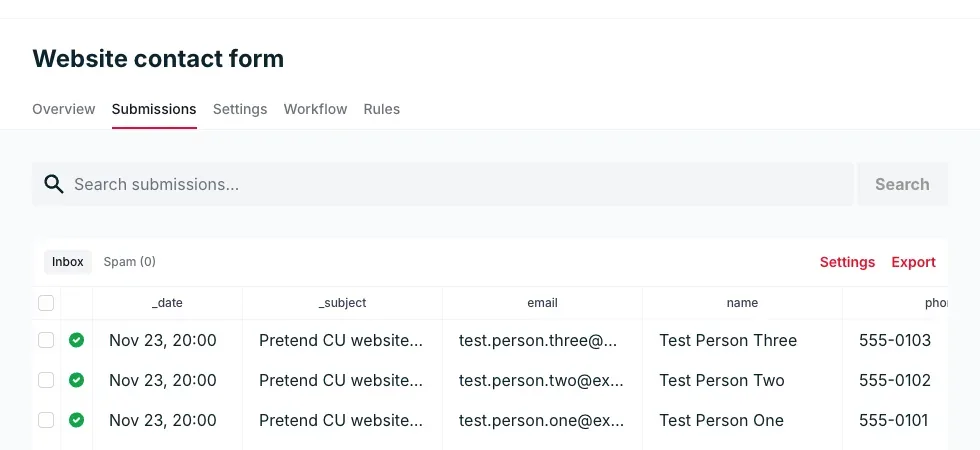
Send a test from the preview page MetriFi gives you. It should show at once under the form’s Submissions, and the notification email should arrive. In our test each email arrived within a second.
Five things to check.
- Visitors land on Formspree’s own thank-you page. The Free plan has no redirect back to your site. The small script your agent adds keeps visitors on your page with your thank-you message, so check that your prompt asked for it. A visitor with JavaScript turned off still lands on Formspree’s page.
- Every send fails after CAPTCHA was turned on. Formspree refuses answers sent from your page and keeps nothing. Turn CAPTCHA off on the form’s Settings tab.
- Limit the form to your domain only after launch. In Forms (opens Formspree in a new tab), click ⋮ next to your project name, then Project settings, and enter your live domain, without https://, under Restrict Submissions to Domain. Then send one test from the live site.
- Answers sit in the Spam tab, with no email. Restrict to Domain is set, and the answer came from another address, such as a MetriFi preview. The visitor still saw your thank-you message. Send tests from the live site, or clear the setting while you test.
- More than 50 answers a month. The Free plan takes 50 submissions a month, and spam doesn’t count. Watch your count on your Account page (opens Formspree in a new tab), and see Formspree’s plans (opens Formspree in a new tab) if you need more.